· 8 min read
ffmpeg crop video
How to crop video with ffmpeg — the crop filter, cropdetect for black bars, and the real gotchas.
The crop filter takes four numbers — output width, output height, and the (x, y) of the top-left corner of the crop window inside the input frame:
ffmpeg -i https://storage.rendi.dev/sample/big_buck_bunny_720p_5sec.mp4 \
  -vf "crop=640:480:320:120" \
  -c:v libx264 -c:a copy out.mp4
That carves a 640×480 region starting at pixel (320, 120) out of the 1280×720 source. The four positional arguments are equivalent to the named form crop=w=640:h=480:x=320:y=120. The official filter docs cover the full grammar.
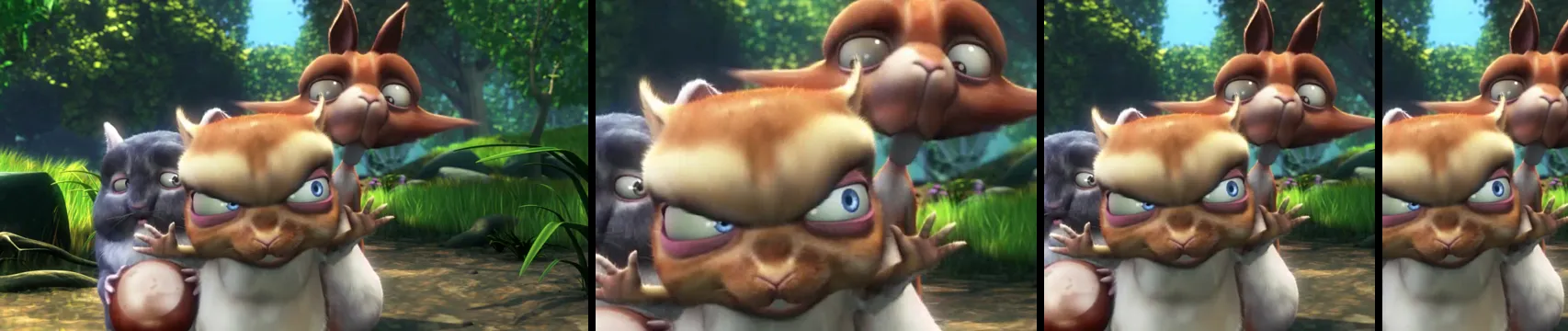
Left to right: the 1280×720 source, the 640×480 off-center crop the first command produces, a centered 720×720 square, and a 720×1280 vertical. The commands that produced them:
# 1280×720 source URL — used as -i in every command below
SRC=https://storage.rendi.dev/sample/big_buck_bunny_720p_5sec.mp4

# 640×480 off-center crop
ffmpeg -i https://storage.rendi.dev/sample/big_buck_bunny_720p_5sec.mp4 \
  -vf "crop=640:480:320:120" \
  -c:v libx264 -c:a copy out_basic.mp4

# 720×720 centered square
ffmpeg -i https://storage.rendi.dev/sample/big_buck_bunny_720p_5sec.mp4 \
  -vf "crop=ih:ih" \
  -c:v libx264 -c:a copy out_square.mp4

# 720×1280 vertical 9:16
ffmpeg -i https://storage.rendi.dev/sample/big_buck_bunny_720p_5sec.mp4 \
  -vf "crop=ih*9/16:ih,scale=720:1280" \
  -c:v libx264 -c:a copy out_vertical.mp4
The defaults
If you omit x and y, ffmpeg centers the crop — x defaults to (in_w-out_w)/2 and y to (in_h-out_h)/2:
ffmpeg -i https://storage.rendi.dev/sample/big_buck_bunny_720p_5sec.mp4 \
  -vf "crop=in_w-200:in_h-100" \
  -c:v libx264 -c:a copy out.mp4
trims 100 px from each side and 50 from top and bottom.
Three shortcuts that fall out of the defaults:
- Trim N pixels from every side:
crop=in_w-2*N:in_h-2*N - Square 1:1:
crop=ih:ih - Vertical 9:16 from a horizontal source:
crop=ih*9/16:ih(chain,scale=720:1280to export at 720p)
The crop expressions for w, h, x, y accept these variables:
iw,ih— input width and height in pixelsow,oh— output (cropped) width and heightsar— sample (pixel) aspect ratio of the inputdar— display aspect ratio of the input, equal to(iw/ih) * sarn— current frame index, starting at 0t— current frame timestamp in secondshsub,vsub— chroma subsampling factors of the input pixel format (e.g. 2 and 1 for yuv422p)
n and t are evaluated per frame, which is what makes animated crops possible.
Removing black bars with cropdetect
For letterboxed or pillarboxed source, cropdetect examines every frame ffmpeg feeds it and prints a recommended crop=... line per frame. It doesn’t crop — you paste the result into a second invocation. How much you analyze is up to you: cap the input with -t <seconds> (the example below uses -t 3 to keep it short).
If you want a test clip to try this on, synthesize one by padding the 720p sample with black bars. The pad filter takes W:H:X:Y:color — it paints a W×H canvas of the given color and drops the input at offset (X, Y). So pad=1280:960:0:120:black makes a 1280×960 black canvas and places the 1280×720 input 120 px down from the top, leaving a 120-pixel black bar above and the same below:
ffmpeg -i https://storage.rendi.dev/sample/big_buck_bunny_720p_5sec.mp4 \
  -vf "pad=1280:960:0:120:black" \
  -c:v libx264 -t 5 letterboxed.mp4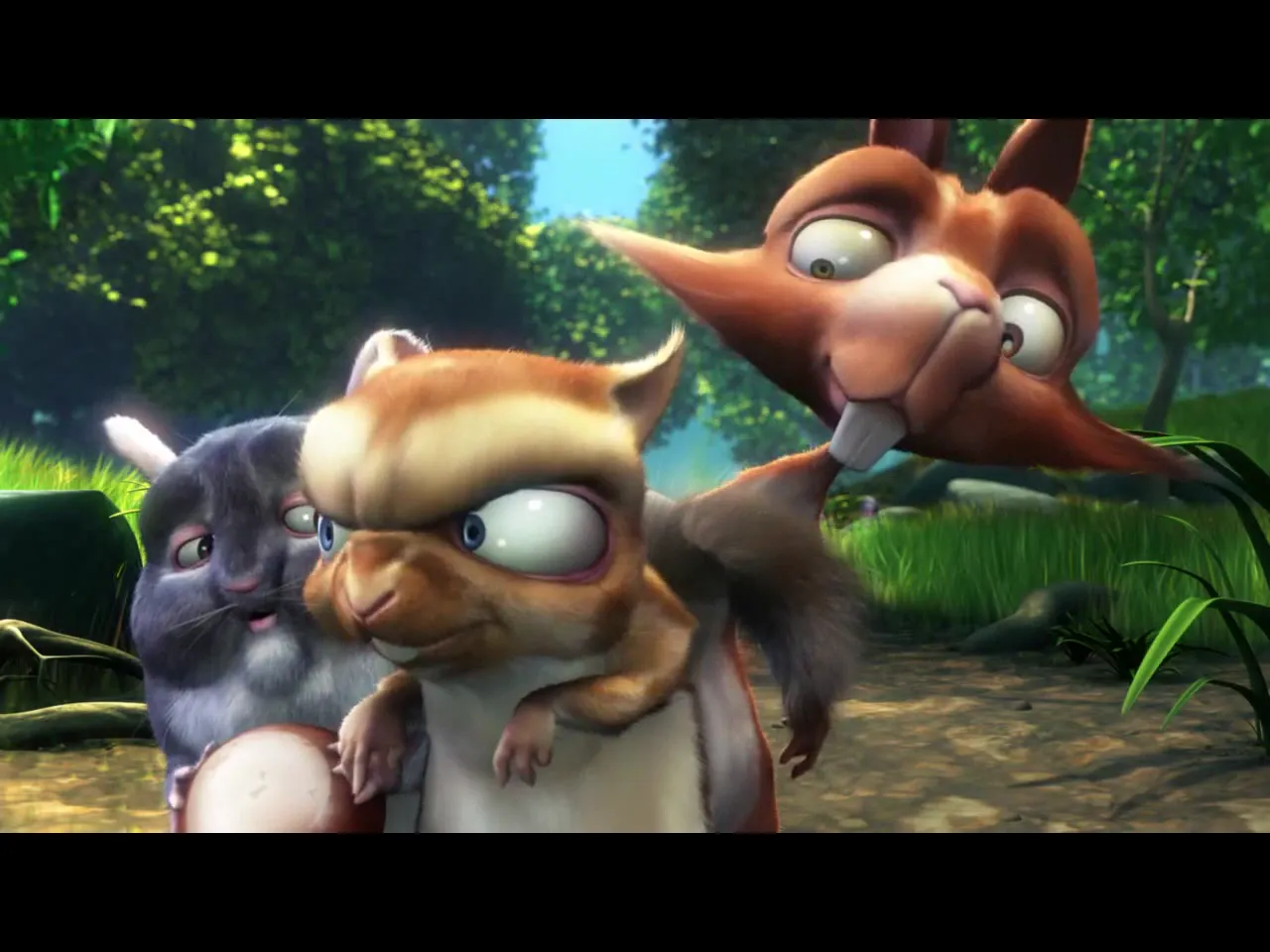
Now run cropdetect:
ffmpeg -ss 1 -i letterboxed.mp4 -t 3 -vf cropdetect=24:16:0 -f null -The three positional arguments are limit:round:reset (the full option list, including mode, skip, and the motion-vector mode, is in the cropdetect filter docs):
limit— per-pixel luma cutoff for what counts as bar. On 8-bit input (luma range 0–255), the default 24 treats any pixel ≤ 24 as part of the bar and anything brighter as active video. Bars are rarely a perfect zero (compression dirties them), so 24 gives a small headroom. Raise it (32, 48) for noisy bars; lower it for clean bars when you don’t want near-black scene content getting absorbed.round— divisibility constraint on the detected width and height. Default 16 keeps you safe across most codecs. Drop to 2 if you’re outputting to 4:2:2.reset— how cropdetect aggregates findings across frames. Internally it tracks a running maximum — the largest active (non-bar) rectangle seen so far. If one frame detects a 1280×700 region and the next detects 1280×720, the printedcrop=line stays at the wider 1280×720 (the union). Defaultreset=0never clears that running max, so the final printed line is the maximum across the whole input. Set it to a positive frame count when a recurring logo or station overlay keeps inflating the detected region, or when the clip switches aspect ratio partway through.
On the synthesized clip above, the last printed line is:
crop=1280:720:0:120Same w:h:x:y order as the crop filter itself:
1280— detected active width. The full input width, since there are no left/right bars.720— detected active height. The 1280×960 input has 240 px of black total (120 top + 120 bottom), so the active region is 960 − 240 = 720 tall.0— left edge of the active region inside the input frame (no left bar to skip).120— top edge of the active region (the height of the top bar).
That round-trips the pad exactly: the bars we added come straight back off.
The -ss 1 seek isn’t required for the synthesized clip above, but on real inputs it usually matters — intros, station logos, or fade-from-black at the start can fool the detector. Skip a second or two in.
Two footguns
Odd output dimensions on H.264. H.264 with yuv420p chroma subsampling requires even width and height. From the maintainer summary in ComfyUI-VideoHelperSuite #51: “It’s a multiple of 2 for any codec using yuv420p as the pix_fmt (h264) and multiple of 4 for av1.”
The failure mode is two different bugs depending on the exact parameter:
# exact=0 (default): silent rounding
ffmpeg -i https://storage.rendi.dev/sample/big_buck_bunny_720p_5sec.mp4 \
  -vf "crop=405:721" -c:v libx264 -pix_fmt yuv420p out.mp4
# → output is 404×720, not 405×721
# exact=1: hard failure
ffmpeg -i https://storage.rendi.dev/sample/big_buck_bunny_720p_5sec.mp4 \
-vf "crop=405:721:exact=1" -c:v libx264 -pix_fmt yuv420p out.mp4
# → Invalid argument; Could not open encoder before EOFIf your dimensions come from arithmetic and you’re not sure they’re even, force them:
crop=trunc(iw/2)*2:trunc(ih/2)*2Filtering and -c copy are mutually exclusive. Cropping rewrites pixel data, which forces a re-encode. Av1an issue #172 is the common shape: a user passes both -c copy and -vf "crop=...", and ffmpeg rejects the combination. Pair -vf "crop=..." with -c:v libx264 (or whichever encoder); audio can still ride through with -c:a copy.
Filter order matters
If you’re combining crop with scale, put crop first. The scaler then processes fewer pixels:
ffmpeg -i https://storage.rendi.dev/sample/big_buck_bunny_720p_5sec.mp4 \
  -vf "crop=ih*9/16:ih,scale=720:1280" \
  -c:v libx264 out.mp4
On a 1280×720 input that produces a 720×1280 vertical clip — the central 405×720 column scaled up to 720p portrait.
For a multi-segment variant — different crop window per time range, with a black-pad fallback when the window falls outside the frame — see the social-media crop recipe in Rendi’s ffmpeg cheatsheet.
Animated crops
The crop window can move. x, y, w, h are evaluated per frame and accept n (frame number) and t (seconds). The crop filter docs include a trembling-camera example built on this; the command below is the same idea slowed down so it’s watchable:
ffmpeg -i https://storage.rendi.dev/sample/big_buck_bunny_720p_5sec.mp4 \
  -vf "crop=in_w/2:in_h/2:(in_w-out_w)/2+((in_w-out_w)/2)*sin(t*1.0):(in_h-out_h)/2+((in_h-out_h)/2)*sin(t*1.3)" \
  -c:v libx264 -c:a copy animated.mp4
The crop window stays at half input size; its top-left corner traces a Lissajous figure as t advances, so the visible area slides around. Run against the 720p sample:
Since 2020 the same parameters are also runtime-tunable via sendcmd, which lets a controller change the crop region during a long encode without restarting it.
Aspect ratio and SAR
Crop recomputes the sample aspect ratio. If your input has non-square pixels and you want the cropped output to keep the original display aspect ratio, set keep_aspect=1. If you hit unexpected stretching after cropping a square-pixel source, append ,setsar=1 to the chain — that’s also a safe workaround for a corner case jamrial patched in 2024, an integer overflow in the SAR recalculation on extreme inputs.